Orbo for Windows
AI that can see your screen, and show you what to do on it
Orbo is an AI that can see your screen on Windows. Double-tap Alt and ask out loud. It looks at what you're working on and answers in a natural voice, draws the steps on your screen, guides you click by click, or does the task while you watch.
By Murodil Aliyev, founder of HeyOrbo · Updated · Free plan · Windows 10 and 11
What is an AI that can see your screen?
An AI that can see your screen is an assistant that looks at what is open on your computer and answers about exactly that. You don't copy text into a chat window or describe the problem first. You ask, and it already has the context.
Tools in this category do different jobs. Some let you share your screen in a chat session. Some record everything so you can search it later. Orbo is built for the moment you are stuck or busy: a small liquid orb beside your cursor that you talk to, and that can respond on the screen itself.
How Orbo sees your screen
- Double-tap Alt and speak. Ask a question or describe a task in your own words. The orb ripples with your voice so you know it is listening.
- Orbo looks at your screen. It takes a screenshot of the display your cursor is on. Its own window is hidden from screen capture, so it stays out of the picture.
- It answers or does it. Out loud and in a small card, by drawing on your screen, by guiding you click by click, or by doing the task while you watch.
Everything Orbo can do
These are all of Orbo's features. The first six are what you use day to day, and you can move between them freely.
Voice answers
Ask anything out loud with a double-tap of Alt. Orbo answers in a natural voice and in a small card beside your cursor, so you can keep your eyes on your work.
Visual explanations
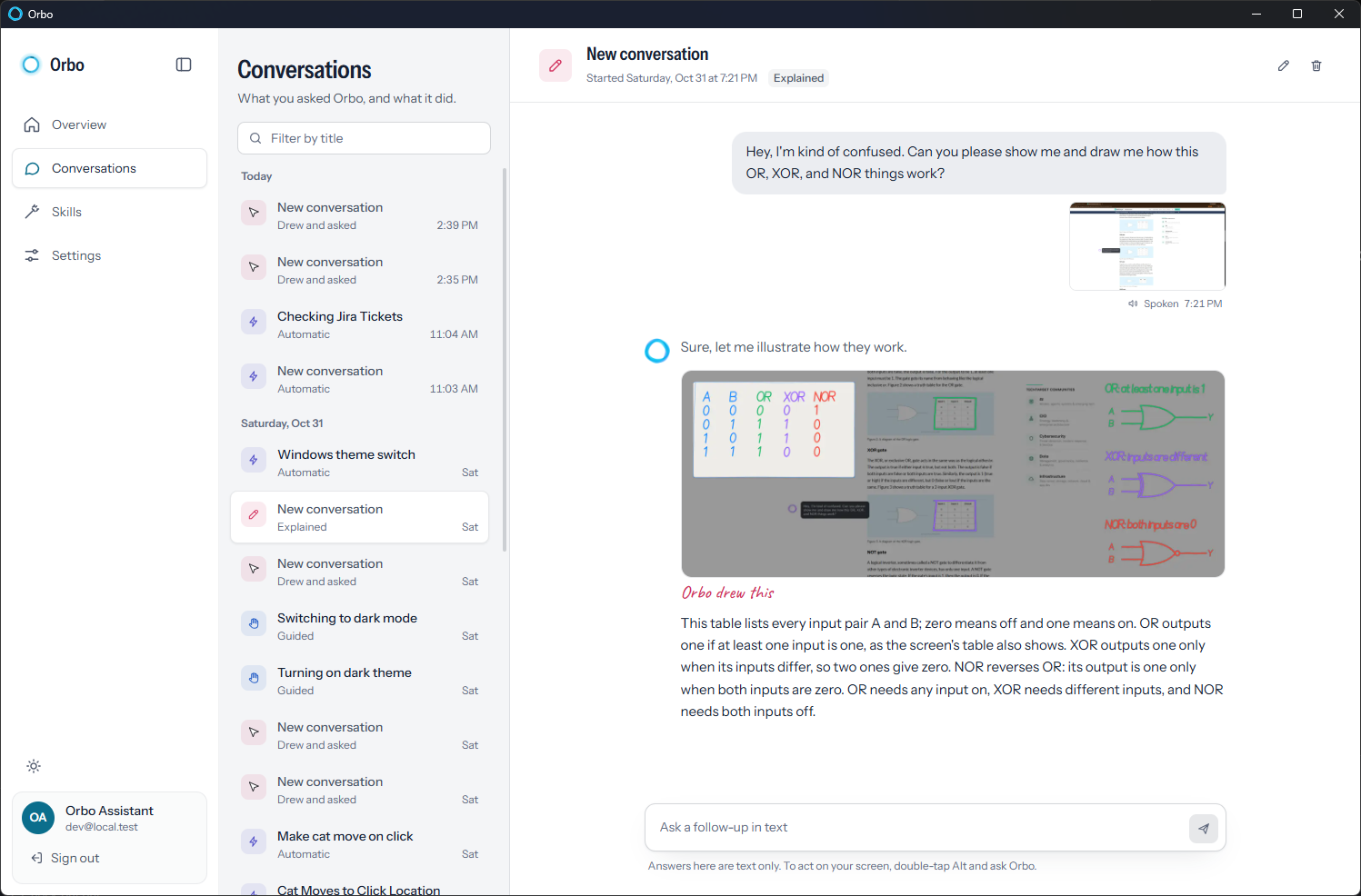
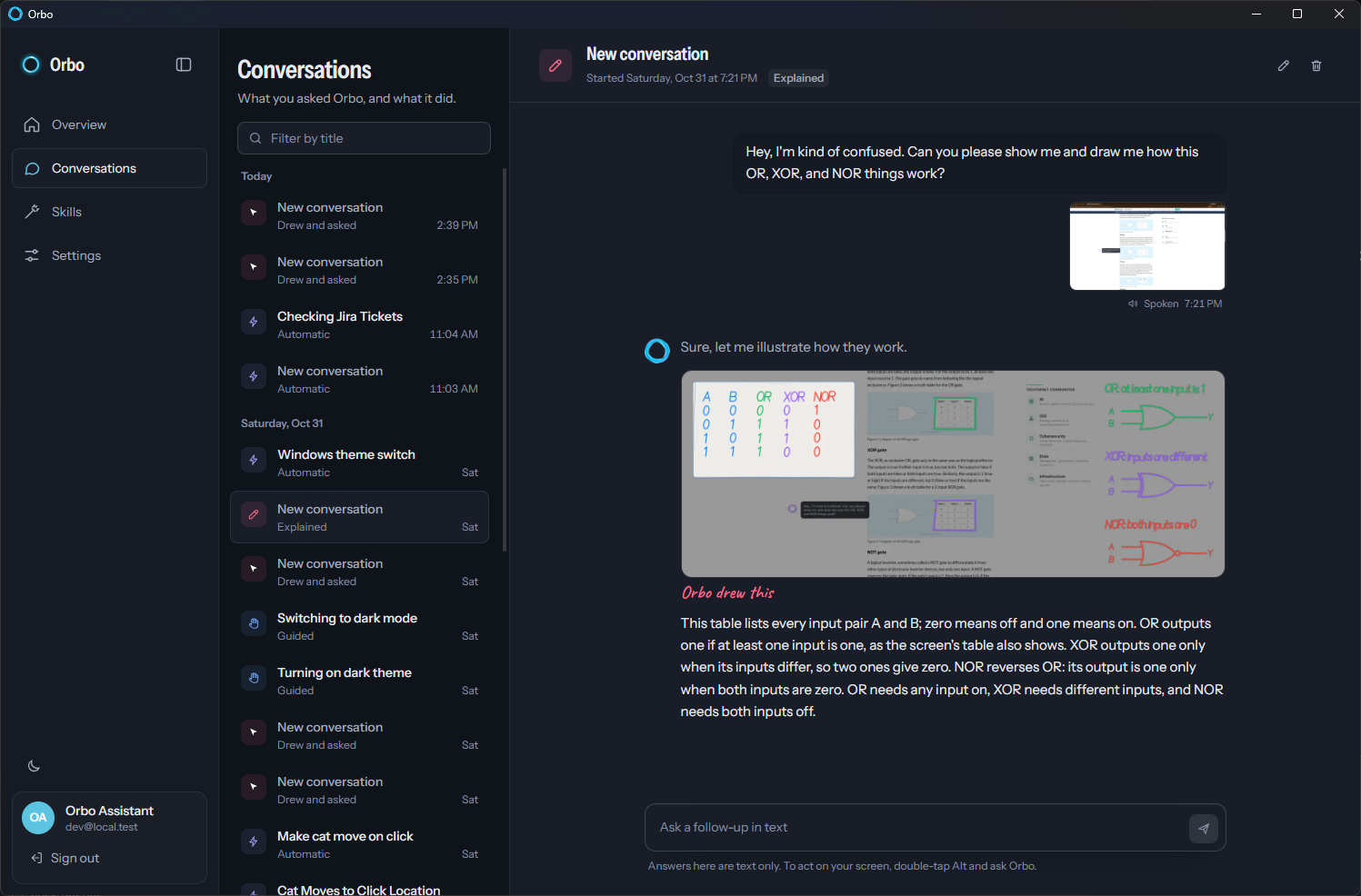
Orbo takes a screenshot of what you're looking at and sketches circles, arrows and numbered steps on top of it, so you can see which button or menu it means. It can also draw to explain an idea. In the conversation below, a user asked how OR, XOR and NOR work, and Orbo drew a truth table and gate diagrams over the page they were reading.
Annotate and ask
Hold Ctrl+Alt, scribble or circle something on your screen, and ask about it. This helps when a screen is busy and "this one" is easier to circle than to describe.
Guided actions
Orbo shows each click, keystroke or scroll on a see-through overlay, then waits for you to do it. You stay in control of every step, and you learn the app as you go.
Automatic actions
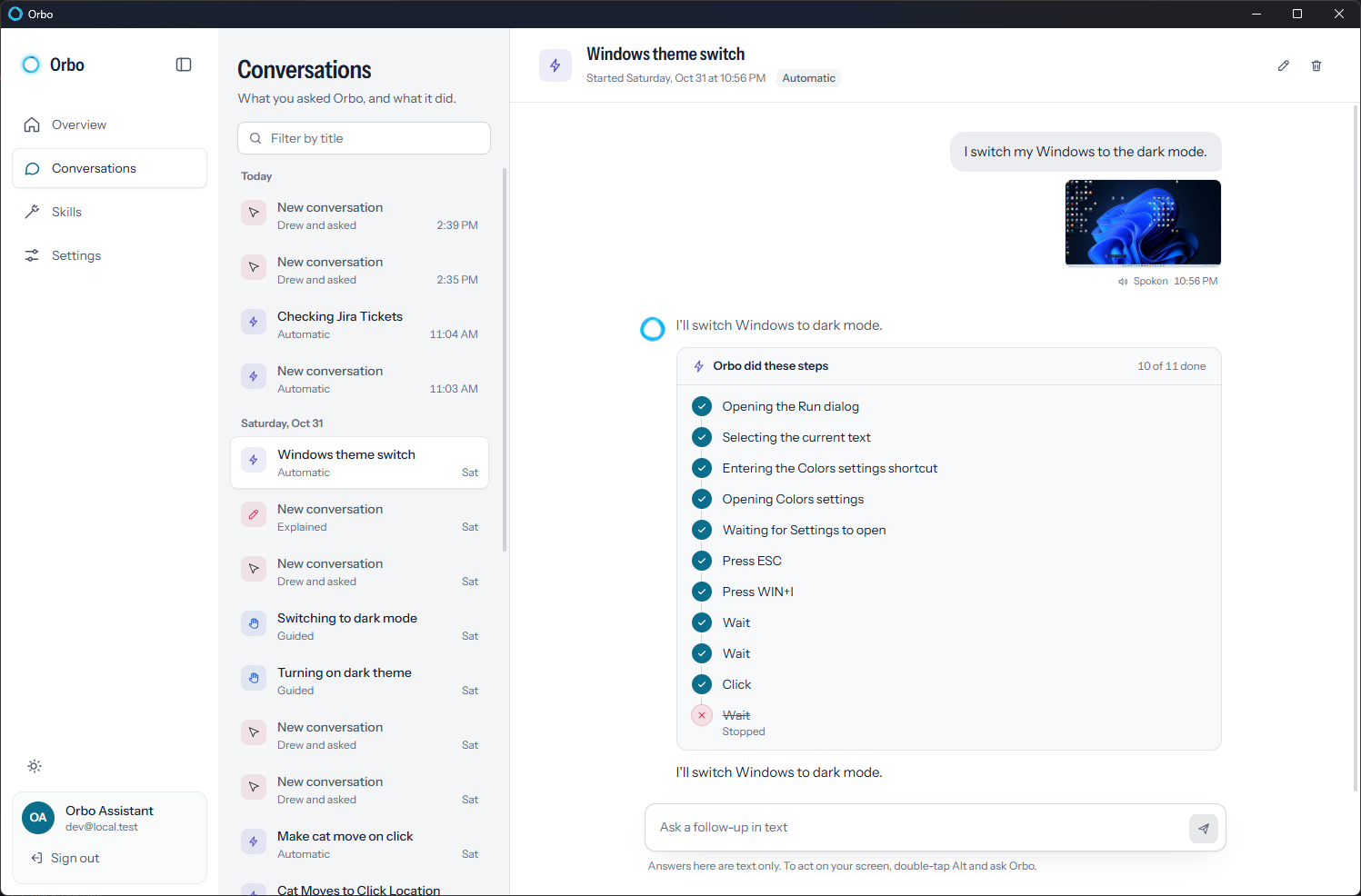
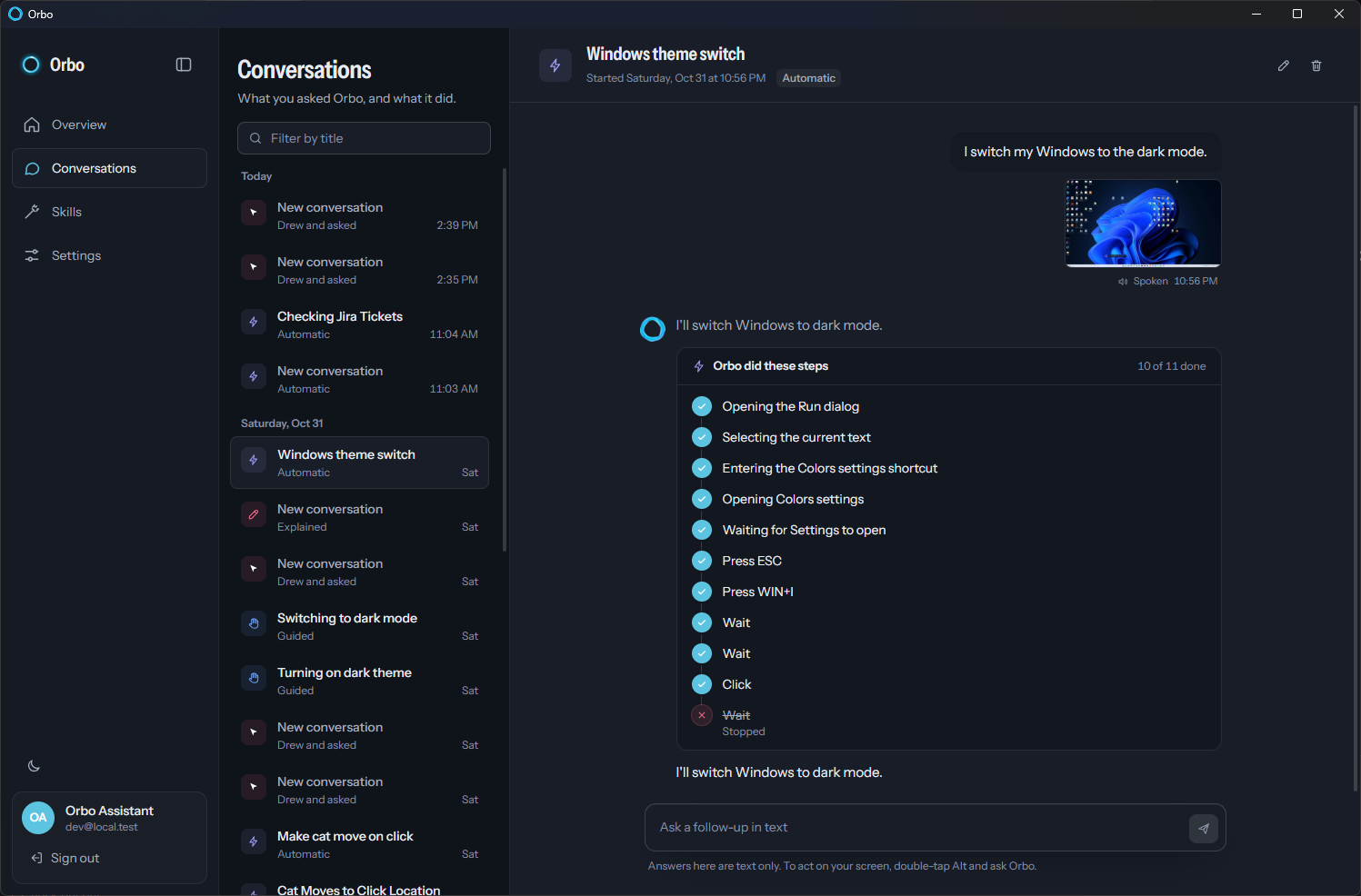
Hand Orbo a task and it moves the mouse, clicks and types until the job is done, while you watch. Press Esc to stop it at once. Afterwards, the conversation lists every step it took. AI can make mistakes, so check the result and keep a copy of anything important.
Dictation
Hold Alt in any app and speak. Orbo types what you say, phrase by phrase, into email, documents, chat or your code editor. Your speech is turned into text locally on your PC. If you only need to transcribe a file, there is also a free speech to text tool that runs in your browser.
Skills
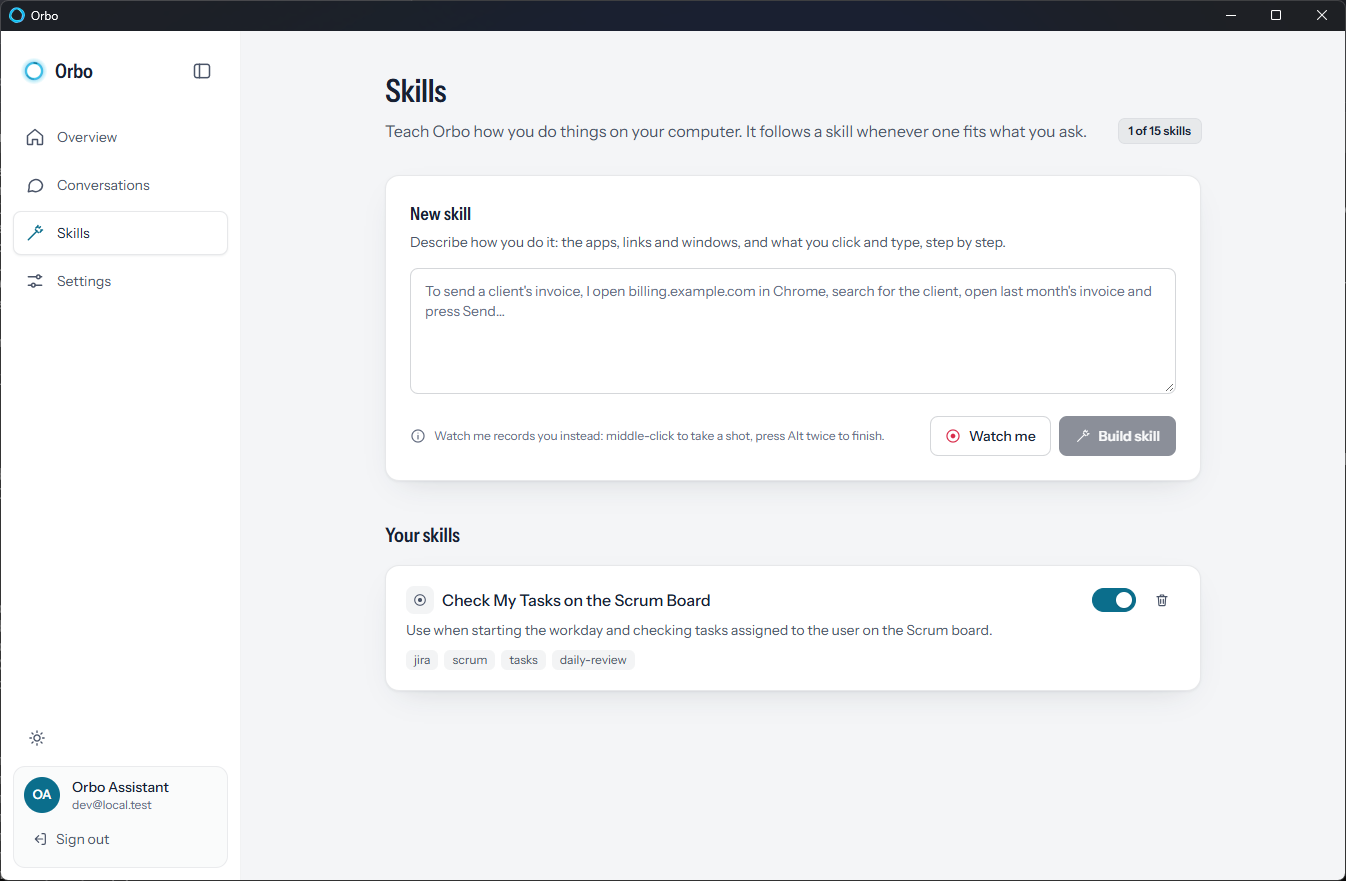
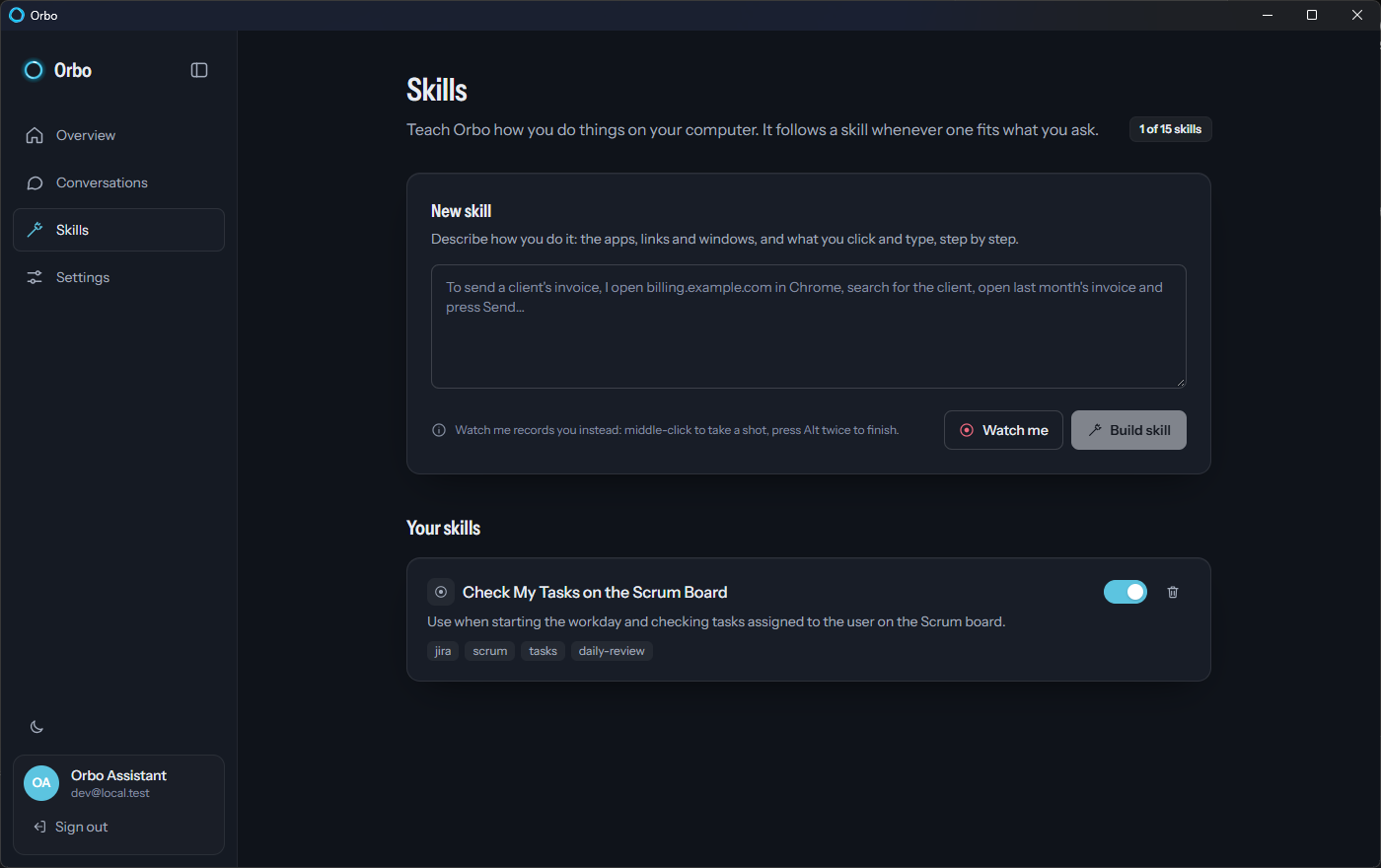
Teach Orbo how you do things, and it follows a skill whenever one fits what you ask. There are two ways to make one:
- Describe it. Write out the apps, links and windows involved, and what you click and type. Then press Build skill.
- Show it with Watch me. Do the task and explain it out loud while Orbo records. Middle-click to take a shot, and press Alt twice to finish.
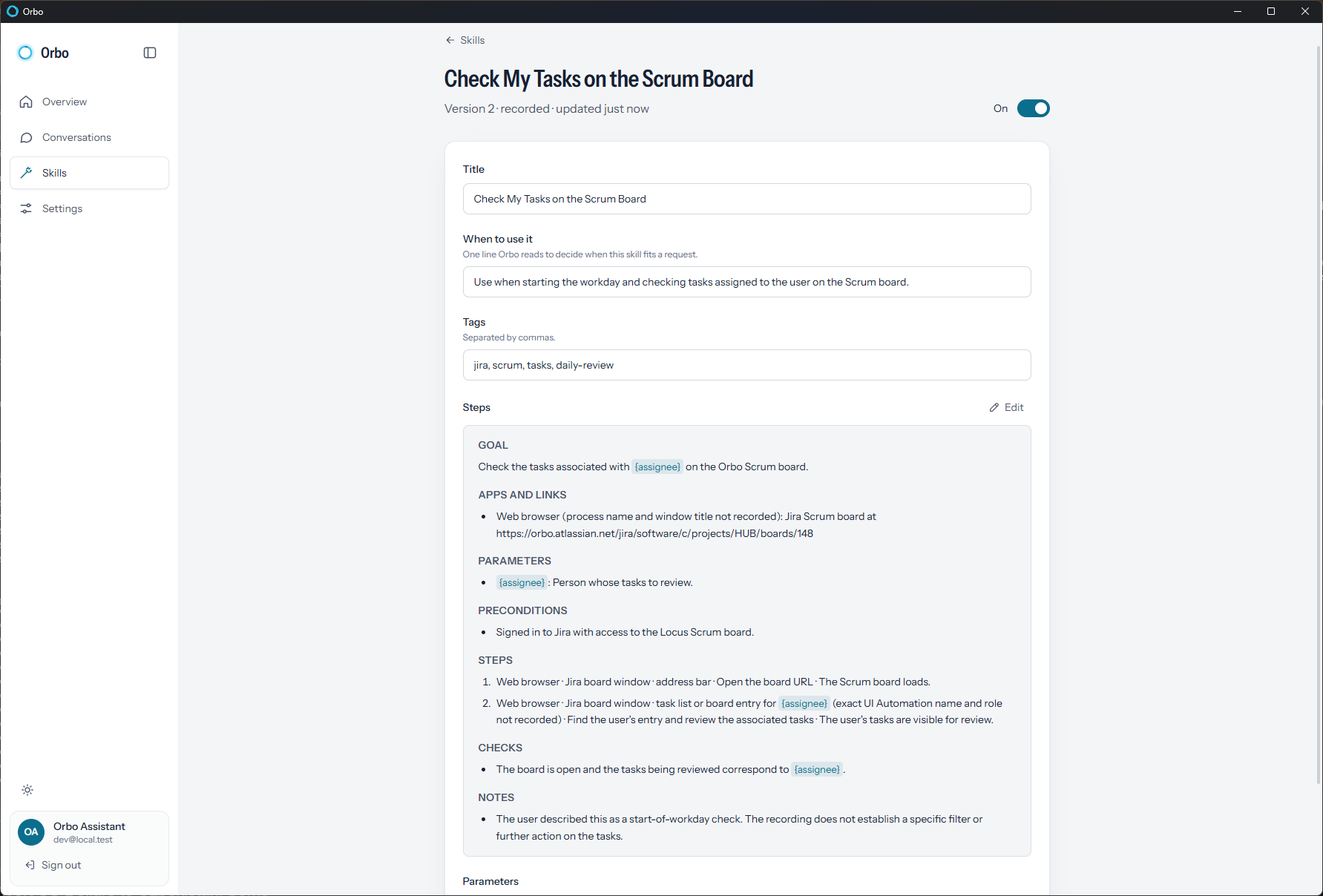
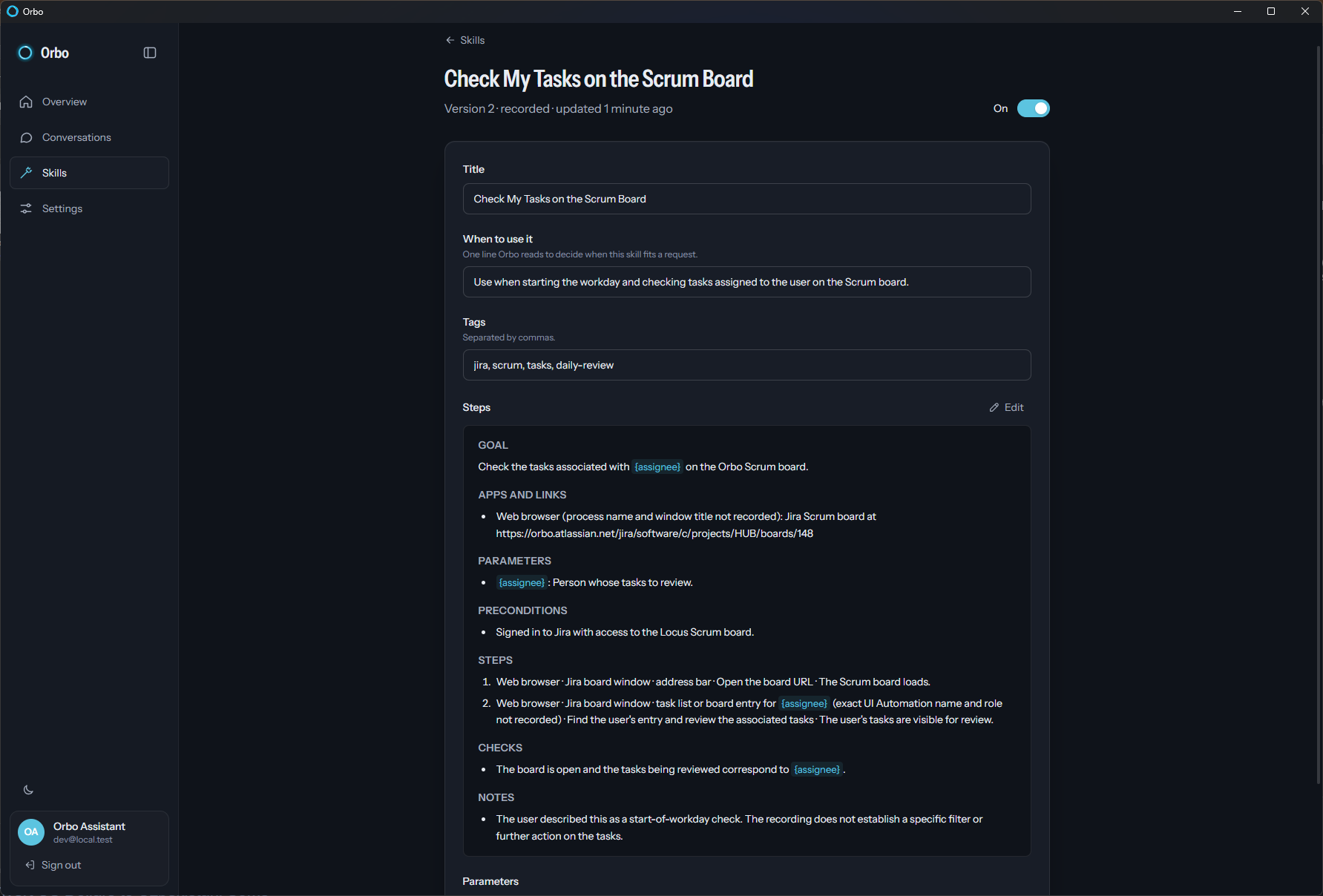
Orbo turns either one into a written skill with a goal, parameters, preconditions, steps and checks. You can edit it, add tags and turn it on or off. Free includes 3 skills, Pro 15 and Max 30.
Conversation history
Voice sessions are saved so you can pick up where you left off. Each one is labeled by what happened: Explained, Drew and asked, Guided or Automatic. You can filter by title, rename or delete a conversation, look back at the guided steps and their progress, and ask a follow-up in text. Text follow-ups answer in text only. To act on your screen, double-tap Alt and ask.
Interview mode
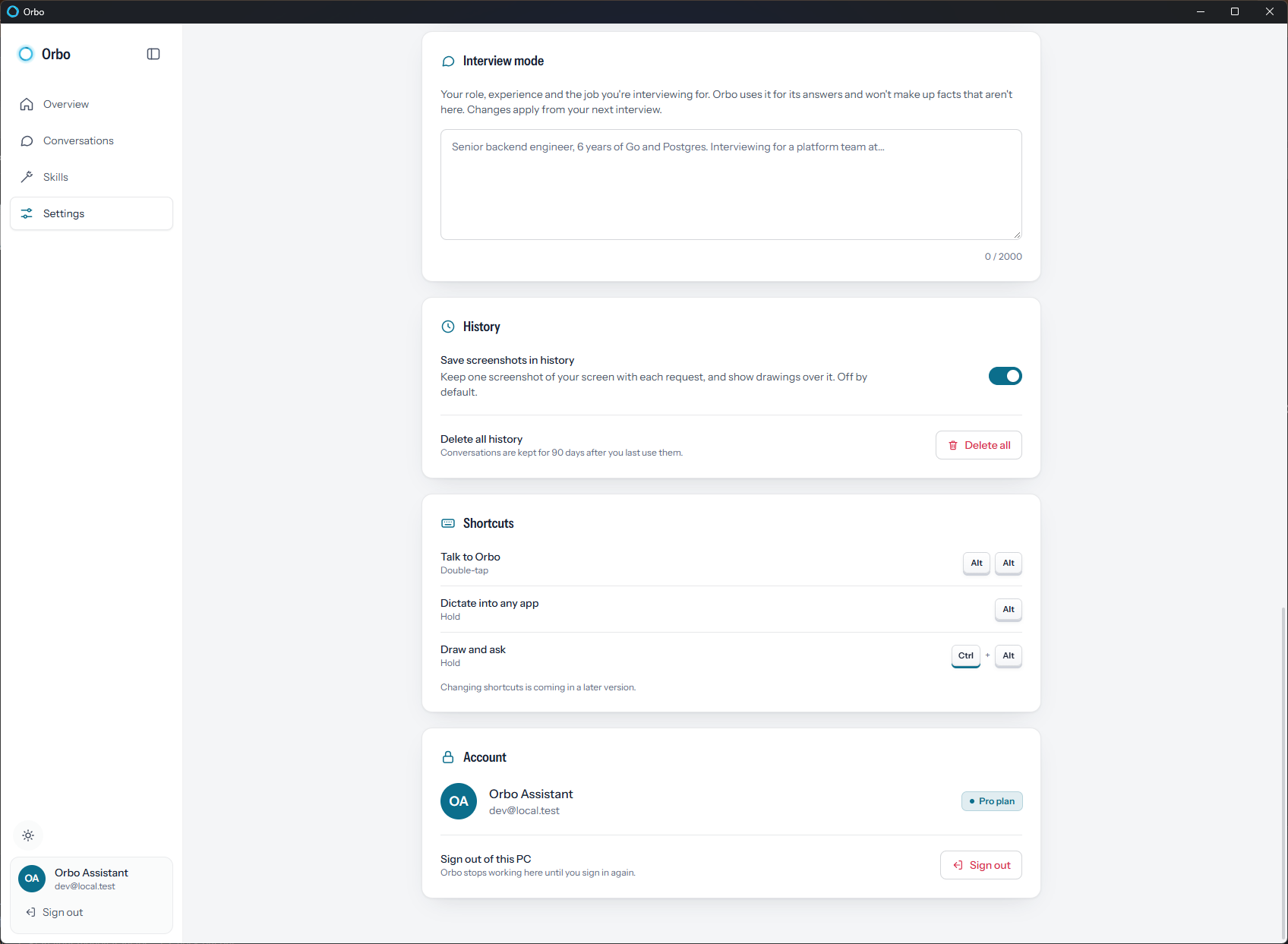
Available on Pro and Max. Add your role, your experience and the job you're interviewing for in Settings. Orbo uses those details for its answers and won't make up facts that aren't there.
Fast mode
Pro and Max run on fast mode for quicker answers and tasks.
Works across monitors
Orbo works on whichever display your cursor is on, so it follows you from one screen to the next.
A tour of the Orbo app
Orbo has two parts: the orb you talk to while you work, and a desktop window where you manage everything.
The orb floats beside your cursor. Its animation changes as it listens, thinks, answers and guides, so you can tell what it is doing without opening anything.
The desktop app comes in light and dark themes, and has four pages:
- Overview: the app's start page.
- Conversations: what you asked Orbo and what it did, grouped by day.
- Skills: create, record, edit and switch your skills on or off.
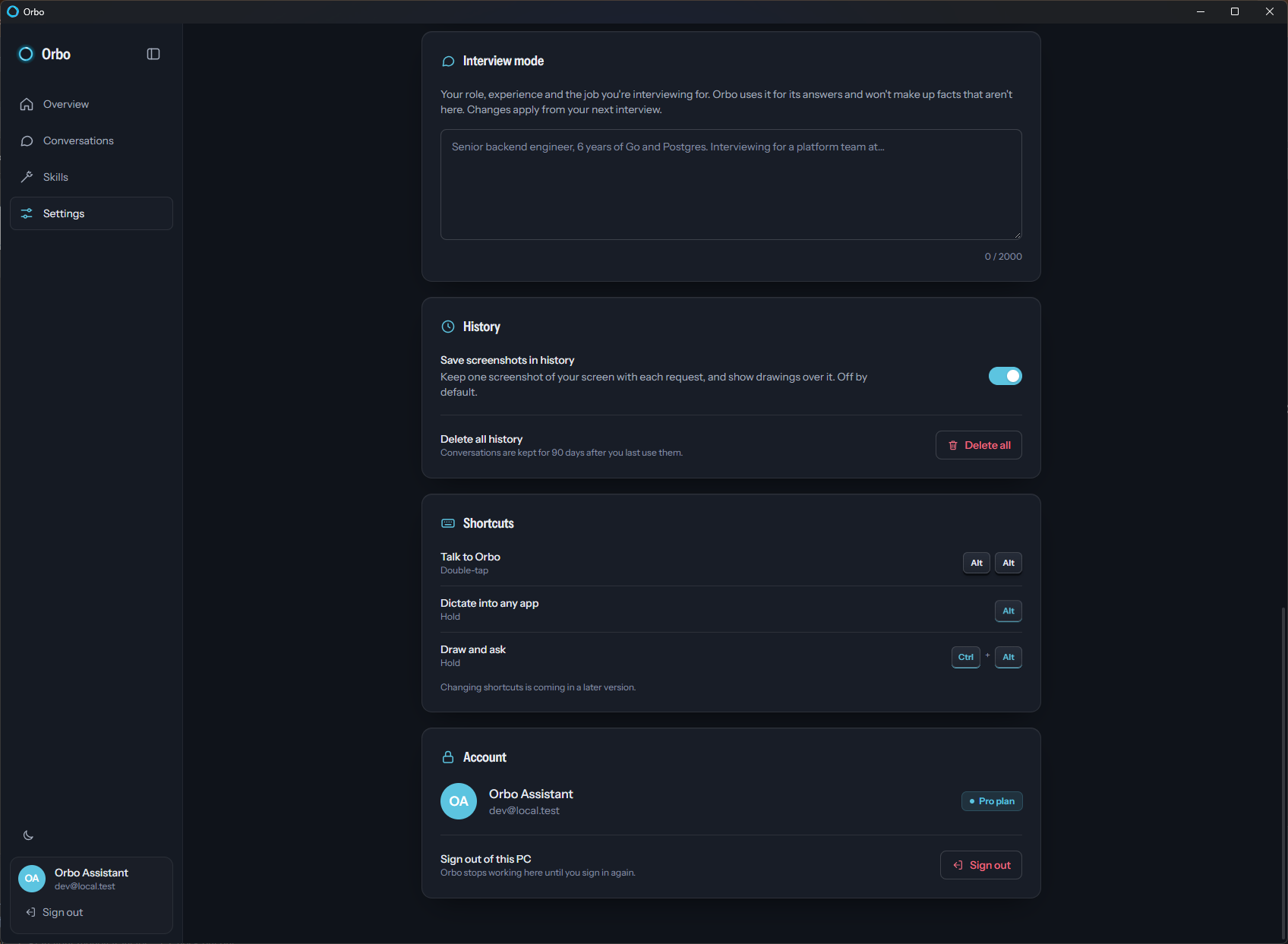
- Settings: Interview mode details, history options, keyboard shortcuts and your account.
These are the shortcuts. Changing them is planned for a later version.
| Action | Shortcut |
|---|---|
| Talk to Orbo | Double-tap Alt |
| Dictate into any app | Hold Alt |
| Draw and ask | Hold Ctrl+Alt |
| Stop an automatic task | Esc |
Watch every demo
These are screen recordings of Orbo on a Windows desktop, grouped by what it is doing.
Doing the task
Drawing and explaining
Working in Excel
Orbo reads the sheet on your screen, so you don't need an add-in. There is more on this in Orbo for Excel.
What you can ask
You don't need the right term for anything. These are example requests, and you can say them however you like.
Understand what you see
- What does this error message mean?
- Explain this chart to me.
- Can you draw how these logic gates work?
- What is this setting for?
Find your way around
- Where do I click to export this?
- Show me how to turn on dark mode.
- Guide me through changing my display settings.
- Which of these options should I pick?
Get it done
- Switch Windows to dark mode.
- Remove the duplicate rows from this table.
- Sort the files in this folder by date.
- Check my tasks on the Scrum board.
Point and ask
- Hold Ctrl+Alt, circle a number: Why is this one so high?
- Circle a button: What happens if I press this?
- Circle a formula: Is this right?
- Circle a paragraph: Say this more simply.
What happens to your screen data
An AI that can see your screen should be clear about what it does with what it sees. Here is what Orbo does:
- When it looks: only while it is working on a request you made. Orbo does not watch or record your screen in the background.
- Where screenshots go: to HeyOrbo's servers and AI model providers, to produce the answer. Anything visible goes with it, so hide sensitive information before you ask.
- Whether screenshots are kept: not in your history by default. The optional Save screenshots in history setting keeps one screenshot with each request and shows Orbo's drawings over it. It is off by default.
- Your voice: turned into text locally on your PC. The audio never leaves your computer.
- Your history: kept according to your plan (see the table below), and you can delete all of it in Settings.
- Control of your computer: only in Automatic mode, only for the task you asked for, and Esc stops it.
Read the privacy policy for full details.
What Orbo can't do
- It runs only on Windows 10 and 11, 64-bit. There is no Mac, Linux or mobile app.
- It understands and answers in English only.
- It needs an internet connection, a microphone, and speakers or a headset.
- It doesn't keep a searchable record of everything you do on your PC. It only looks when you ask.
- Windows or videos that block screen capture may appear blank to it.
- It can misread a screen or get things wrong, so check its work on anything important.
- Each plan has daily and monthly limits, listed below.
Orbo vs. other screen AI tools
Tools that can see your screen fall into a few types. This comparison reflects how each type generally works as of November 2026. Individual products differ and change often, so check the details of any product you are considering.
| Screen-sharing chat assistants | Background screen recorders | Orbo | |
|---|---|---|---|
| Main job | Talk about what you share | Search what you did earlier | Help with what's on screen now |
| When it sees the screen | During a session you start | Continuously, in the background | Only while working on your request |
| How you ask | Open the app, share, then talk or type | Search or ask afterwards | Double-tap Alt and speak |
| Points at things on screen | Varies by product | Usually not | Draws circles, arrows and numbered steps |
| Guides you click by click | Varies by product | Usually not | Yes, Guided mode |
| Does the task | Varies by product | Usually not | Yes, Automatic mode |
If you want a searchable memory of past activity, a background recorder is the better fit. If you want help with what is on your screen right now on Windows, by voice and on the screen itself, that is what Orbo is for.
Plans and pricing
Start free. Yearly billing gives you 2 months free, and you can upgrade, switch or cancel from your account page. See the pricing section for checkout.
| Feature | Free | Pro | Max |
|---|---|---|---|
| Price | $0 | $12/month or $120/year | $24/month or $240/year |
| Fast mode | No | Yes | Yes |
| Interview assistant | No | Yes | Yes |
| Voice requests | 5 / day · 150 / month | 100 / day · 2,000 / month | 175 / day · 3,500 / month |
| Dictation | 5 min / day · 2.5 h / month | 90 min / day · 20 h / month | 3 h / day · 60 h / month |
| Speech to text on the web | 5 min / day | 1 hour / day | 3 hours / day |
| Computer use: guided or automatic tasks | about 8 / month | about 100 / month | about 300 / month |
| Computer use: explanations with drawings | about 40 / month | about 700 / month | about 2,000 / month |
| Voice answers | about 55 min / month | about 3.5 hours / month | about 9 hours / month |
| Skills | 3 | 15 | 30 |
| Conversation history | 30 days · last 5 sessions | 90 days · unlimited sessions | 90 days · unlimited sessions |
| Devices | 1 PC | 3 PCs | 5 PCs |
Tasks and explanations share one monthly Computer use allowance, so their counts are estimates, since longer tasks use more of it. A running task always finishes. Allowances reset on your billing date (Free: on the 1st of each month).
System requirements and install
- OS: Windows 10 or 11, 64-bit
- Processor: x64, 2 cores or better
- Memory: 4 GB RAM (8 GB recommended)
- Disk: 150 MB free space
- Audio: Microphone and speakers / headset
- Network: Internet connection
Setup takes three steps:
- Run the installer. Open Orbo-Setup-1.0.0.exe and follow the prompts. No admin rights needed.
- Sign in. Use the same Google account as here. Your plan syncs automatically.
- Double-tap Alt. The orb appears beside your cursor. Say hi.
Updates install automatically, and you can uninstall any time from Windows Settings.
FAQ: AI that can see your screen
What is HeyOrbo?
HeyOrbo is the company and website (heyorbo.com) behind Orbo, an AI voice assistant for Windows 10 and 11 that can see your screen. HeyOrbo is based in Tashkent, Uzbekistan, and was founded by Murodil Aliyev.
Is there an AI that can see my screen?
Yes. Orbo is an AI assistant for Windows that looks at your screen when you ask it something. Double-tap Alt, ask out loud, and it answers about what is in front of you. It can also draw on the screen, guide you click by click, or do the task for you.
Can Orbo see my screen all the time?
No. Orbo takes a screenshot only while it is working on a request you made. It does not watch or record your screen in the background.
Where do my screenshots go, and are they stored?
A screenshot is sent to HeyOrbo's servers and AI model providers to produce the answer, including anything visible on your screen at that moment. By default it is not saved to your history. An optional setting, Save screenshots in history, keeps one screenshot with each request. It is off by default.
Can Orbo control my computer?
Only in Automatic mode, and only for the task you asked for. It moves the mouse, clicks and types while you watch. Press Esc to stop it at once. In Guided mode you do every step yourself.
Which apps does Orbo work with?
Orbo works from what is on your screen, so it isn't tied to a list of supported apps and you don't install any add-ins. The demos on this page show Excel, Paint, Scratch and File Explorer. Windows or videos that block screen capture may appear blank to it.
Does Orbo work with two monitors?
Yes. It works on whichever display your cursor is on.
Does Orbo work on Mac, Linux or a phone?
No. Orbo runs on Windows 10 and Windows 11, 64-bit. There is no macOS, Linux or mobile app.
Is my voice recorded?
Orbo turns your voice into text locally on your PC, so the audio never leaves your computer. Only the resulting text is sent when it is needed to answer you.
What languages does Orbo understand?
English, spoken with any accent. Orbo also answers in English.
Is Orbo free?
There is a free plan with 5 voice requests a day, 5 minutes of dictation a day and a monthly Computer use allowance. Pro costs $12 a month and Max costs $24 a month, with more usage and extras such as fast mode.
How is Orbo different from a chatbot?
With a chatbot you usually type your question and add a screenshot or describe the problem. With Orbo you speak where you are working, it looks at the screen itself, and it can respond on the screen by drawing, guiding you or doing the steps.
Can Orbo make mistakes?
Yes. Like any AI it can misread a screen or get an answer wrong. Check its work, watch automatic tasks as they run, and keep a copy of anything important before asking it to change files or data.
Ask about your screen
Install Orbo, open whatever you're working on, double-tap Alt and ask your first question.