Computer help for beginners
Computer help for beginners and seniors: just ask, and Orbo shows you where to click
Orbo is a patient helper that lives on your Windows PC. Press Alt twice and ask in your own words. Orbo looks at your screen, answers out loud, and draws on the screen to show exactly where to click. It can also guide you one click at a time, or do the job for you.
Free plan · Windows 10 and 11 · No computer words needed · Updated
Why computers feel hard
Most computer problems aren't difficult. They are just hidden. The setting you need is three menus deep, a button changed places after an update, or a pop-up uses words nobody explained. Instructions on the internet assume you already know where "Settings" is, and videos move too fast.
The best help has always been someone sitting next to you who points at the screen and says "click there". Orbo does that, whenever you need it, and never minds being asked twice.
What Orbo does
Orbo is an AI voice assistant for Windows and an AI that can see your screen. It appears as a small glowing circle next to your mouse pointer. When you ask something, it looks at what is on your screen and helps in the way you choose:
- It tells you. Orbo answers in a clear, natural voice and in a small card next to your pointer.
- It shows you. It draws circles, arrows and numbers on top of your screen, so you can see which button it means.
- It walks you through it. In Guided mode Orbo shows each click and waits for you to make it. You learn by doing.
- It does it for you. In Automatic mode Orbo moves the mouse and types while you watch. Press Esc to stop it.
Demo: finding and tidying files
Lost files are one of the most common computer problems. In this recording Orbo finds and tidies files in File Explorer.
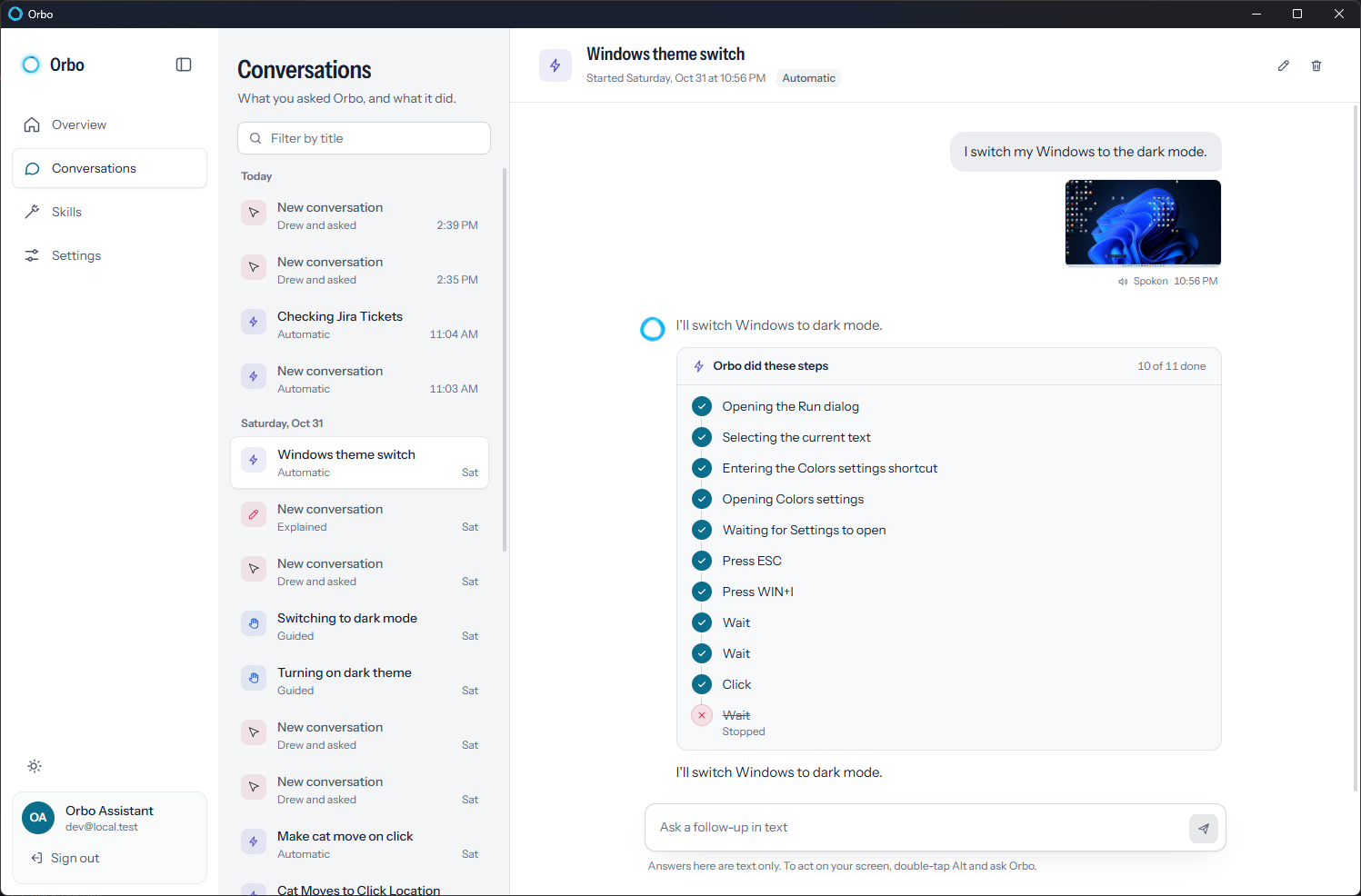
Example: “turn on dark mode for me”
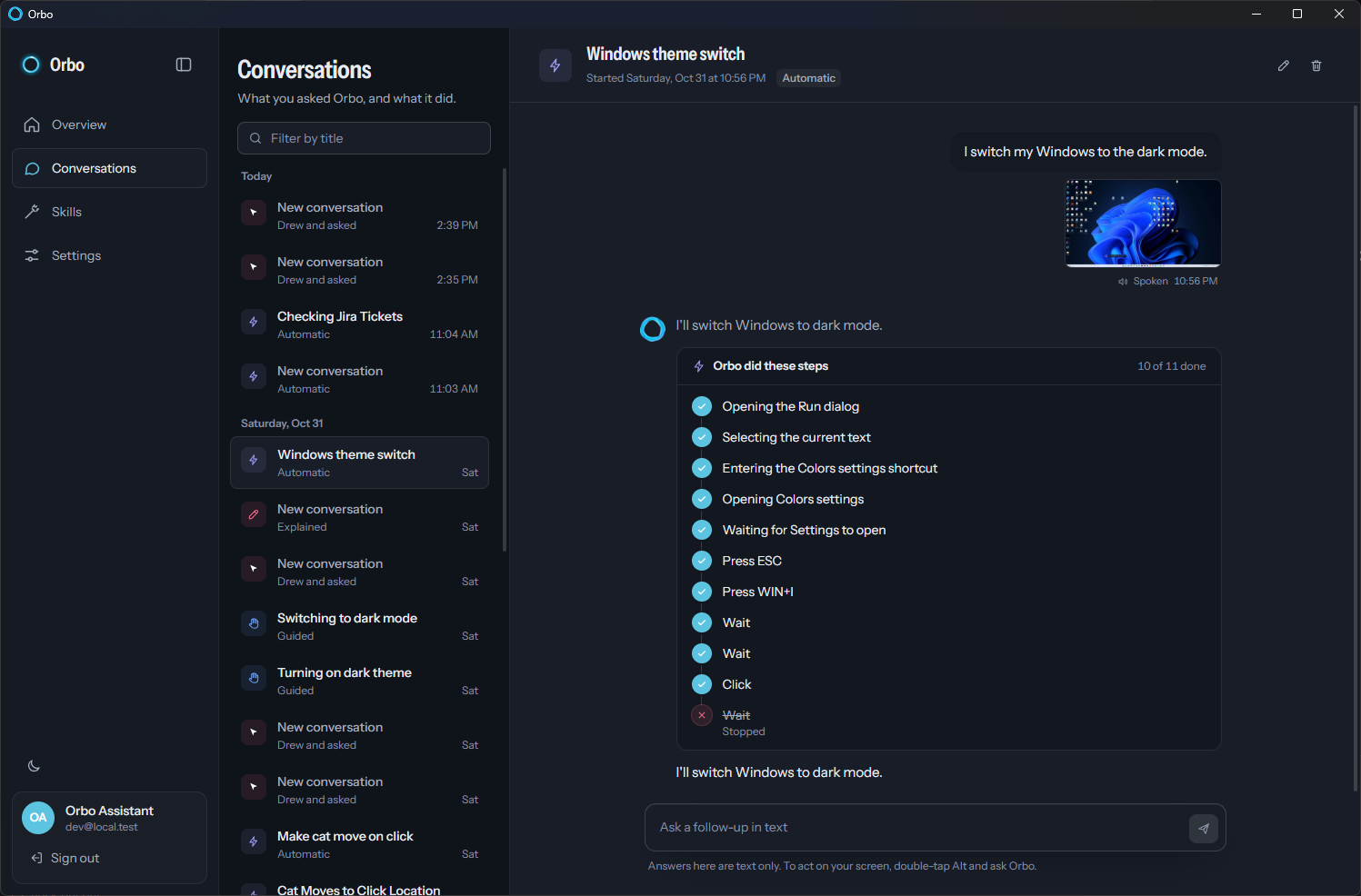
When you ask Orbo to do something, it keeps a list of every step it took, so you can look back at what changed. This saved conversation shows Orbo switching Windows to dark mode.
How to start
- Install Orbo. Get it from heyorbo.com. It installs from the Microsoft Store and needs no admin rights.
- Sign in with Google. Use the same Google account you use for Gmail or YouTube.
- Press Alt twice and talk. The Alt key is next to the space bar. Tap it twice quickly, then say what you need.
- Listen and look. Orbo answers out loud and draws on your screen where to click.
- Ask again any time. Didn't catch it? Ask “can you say that again more slowly?”
Things you can ask
Say it any way you like. People ask things like:
Files and photos
- “Where did the photo I just downloaded go?”
- “How do I make a new folder for my recipes?”
- “Move these pictures into the Holiday folder.”
- “How do I attach this document to an email?”
Settings
- “How do I make the text on my screen bigger?”
- “How do I connect to my Wi-Fi?”
- “Turn on dark mode for me.”
- “How do I add my printer?”
Everyday tasks
- “How do I take a screenshot?”
- “How do I join a video call from this email?”
- “How do I print just page 2?”
- “How do I copy this text and paste it into a message?”
When something looks wrong
- “What is this pop-up asking me?”
- “Does this email look like a scam?”
- “The taskbar at the bottom disappeared. How do I get it back?”
- “Why is my sound not working?”
Setting it up for a family member
If you are the person who gets the phone calls, Orbo can take some of them. Install it on your family member's PC, sign them in, and teach them one thing: press Alt twice and ask. Then do one question together, for example "how do I make the text bigger?".
- It works on Windows 10 and 11, so most home PCs and laptops are fine.
- It needs a microphone and speakers. Most laptops have both built in; desktop PCs may need a headset.
- It understands and speaks English only.
- The free plan covers one PC. Paid plans cover more.
Staying safe
Orbo is a helper, not a security product. A few rules keep it that way:
- Orbo only looks at your screen when you ask it something. It does not watch in the background.
- Close anything private, such as bank pages, before you ask, because what is on screen is sent to answer your question.
- Type passwords and bank details yourself. Never ask anyone, including an AI, to enter them for you.
- If a message or pop-up worries you, ask Orbo "does this look like a scam?", but treat the answer as a second opinion. When in doubt, call the company using a number you already know.
- When it looks: only while it is working on a request you made. Orbo does not watch or record your screen in the background.
- Where screenshots go: to Orbo's servers and AI model providers, to produce the answer. Anything visible goes with it, so close or hide anything private before you ask.
- Your voice: turned into text locally on your PC. The audio never leaves your computer.
- Control of your computer: only in Automatic mode, only for the task you asked for, and Esc stops it.
Orbo vs. calling someone for help
| Calling family | Searching online | Orbo | |
|---|---|---|---|
| Available | When they're free | Any time | Any time |
| Sees your screen | Only if they visit | No | Yes, when you ask |
| Shows where to click | Describes it on the phone | In someone else's screenshots | Draws on your screen |
| Can do it for you | If they're there | No | Yes, while you watch |
| Patience | Varies | Not applicable | Ask as often as you like |
Watch the full demo
This longer video shows Orbo answering, drawing and doing tasks in everyday Windows apps.
FAQ: computer help with Orbo
That is who it is for. There are no menus to learn: you press the Alt key twice and say what you need in your own words, such as "how do I make the text bigger?". Orbo answers out loud and shows you on the screen where to click.
No. Say it however you would say it to a person: "the little picture at the bottom disappeared" or "where did my photo go?". Orbo looks at your screen, so it can work out what you mean.
Yes, if you ask it to. In Automatic mode it moves the mouse and types until the task is done, while you watch. Press Esc to stop it at once. If you'd rather learn, ask it to guide you, and it shows each click and waits for you to do it.
Yes. Install it on their PC, sign in with their Google account, and show them one thing: double-tap Alt and ask. After that they can ask Orbo instead of waiting for a phone call. Each plan covers a set number of PCs, starting with one on the free plan.
Orbo is not antivirus or scam protection. You can ask it "does this message look like a scam?" and it will tell you what looks suspicious, but it can be wrong. Never let anyone, including any AI, enter your passwords or bank details for you.
Windows 10 and Windows 11, 64-bit. It needs an internet connection, a microphone, and speakers or a headset. It does not run on Mac, Chromebook, tablets or phones.
Yes, there is a free plan with daily voice requests. Pro and Max plans give more requests and more guided and automatic tasks each month.
Ask your first question
Install Orbo, press Alt twice, and ask the question you have been meaning to ask. There is no wrong way to say it.